

The right move is a client-specific portal, or a file-sharing service locked down to named recipients with phishing-resistant MFA, expiry dates, and audit logging. Password-protected links and email attachments fail on authentication strength, not on encryption, which is why anyone can forward a link and walk right past your security. The checklist below turns that single recommendation into a procedure you can run this week.
TL;DR:
- Password-protected links and email attachments are insecure because they rely solely on encryption, allowing anyone forwarding the link to access files without proper authentication.
- A secure client portal must guarantee that only intended recipients can access files, with automatic expiry, revocation, and detailed audit logging of all access attempts.
- Phishing-resistant MFA, such as security keys or authenticator apps, is essential for authenticating file access, as SMS-based codes are vulnerable to interception and spoofing attacks.
- Configuring every file with default permissions, expiry dates, and a clear offboarding process prevents lingering access after client engagement ends.
- A small practice can implement secure sharing by classifying file sensitivity, creating client-specific folders, enabling MFA, setting expiry, and conducting monthly access reviews.
Table of Contents
- What Is Secure Client File Sharing, Exactly?
- What Security Controls Should You Require When Sharing Client Files?
- Step-by-Step Checklist for Sharing Files With Clients Securely
- Portals, Secure Links, Encrypted Messages, or Data Rooms: What Fits a Coaching Practice?
- How Do You Evaluate a Secure File-Sharing Tool Before You Buy?
- How Do You Roll Out Secure File Sharing in a Small Practice?
- Why Secure File Sharing Changes How Coaching Actually Works
- ClickCoach: One Secure Portal Instead of Five Disconnected Tools
- Sources
- FAQ
What Is Secure Client File Sharing, Exactly?
Secure client file sharing means every file a client sends or receives passes through a system with three guarantees: only the intended person can open it, every access attempt gets logged, and access ends automatically when it should. That is a higher bar than “the link has a password” or “the attachment went through Gmail.” A coaching practice moving intake forms, assessment results, or session notes needs a document portal or secure document transfer method that satisfies all three, not just one.
Most small practices already use some form of encrypted file sharing without realizing its limits. A shared Google Drive link feels secure because Google encrypts data at rest. But if that link has no expiration, no recipient restriction, and no login requirement, you have built a system where security depends entirely on nobody else finding the URL. That is not a control. That is luck.
What Security Controls Should You Require When Sharing Client Files?
Four controls separate a real secure document portal from a link that merely looks secure. Skip any one of them and you have a gap, not a system.
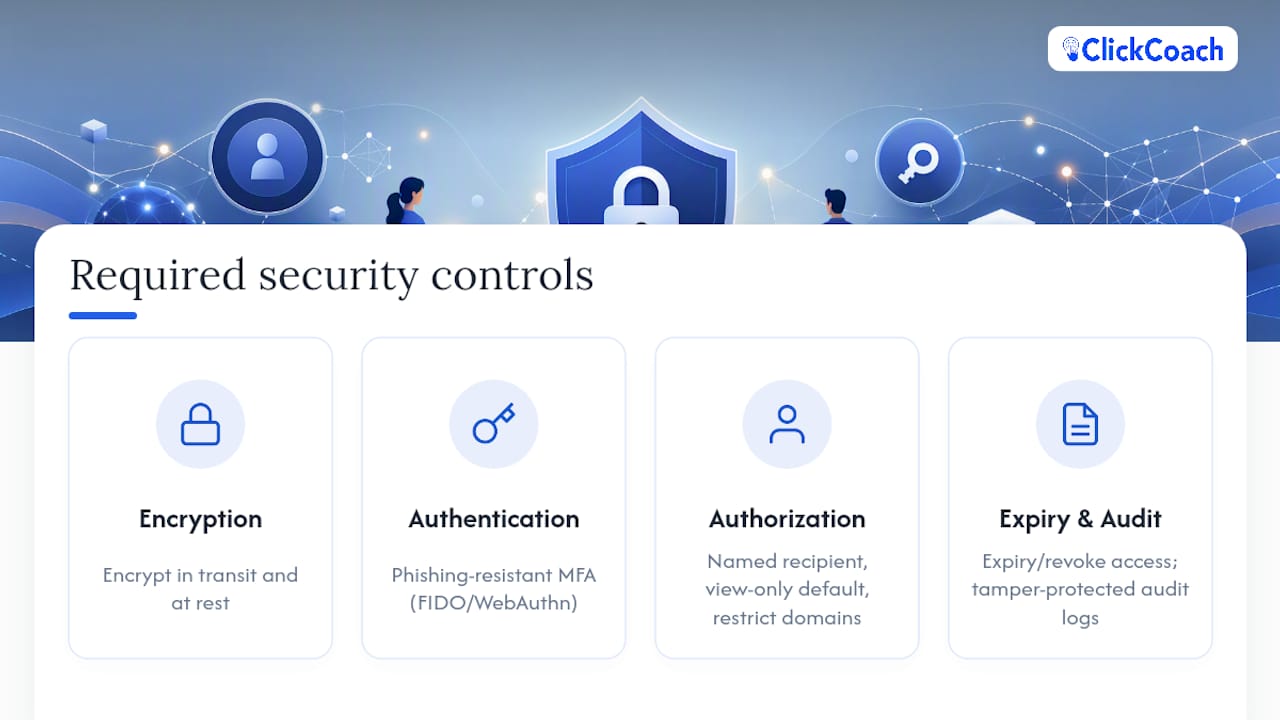
Encryption in transit and at rest. Files need to be encrypted while moving between servers and while sitting on a disk somewhere. This is table stakes. NIST’s guidance for protecting sensitive nonfederal data lists encryption alongside authentication, authorization, audit logging, and data protection as the core pillars of storage security, not as an optional add-on. If a vendor cannot describe both, in transit and at rest, in plain language, that is a red flag worth noting.
Authentication, specifically phishing-resistant MFA. Not all multifactor authentication is equal. CISA recommends prioritizing phishing-resistant methods such as FIDO/WebAuthn security keys or authenticator apps over SMS codes, because text messages can be intercepted or spoofed through SIM-swapping attacks. For a coaching practice handling sensitive personal or financial disclosures, this distinction matters more than most vendors admit upfront.
Authorization and least privilege. Every file should go to a named person, not a link anyone with the URL can open. Default new shares to view-only. Restrict sharing to specific domains when your client works inside an organization. CISA’s SharePoint and OneDrive configuration baseline recommends exactly this: restrict external sharing to specific people, default to view-only, and cap “Anyone” link lifespans at 30 days or less.
Expiry, revocation, and audit trails. Access should have a built-in end date tied to when the engagement wraps up, and you should be able to kill it manually the moment something feels off. Every access event, upload, download, view, and share, needs a timestamped record. NIST SP 800-209 warns that storage-management systems are frequent attack targets and that audit logs themselves need protection from tampering, since a log an attacker can edit is worse than no log at all.
Pro Tip: Map your file types to handling rules before you pick a tool. Intake forms and assessment scores probably need view-only access and 90-day expiry. Signed contracts might need download rights and permanent archival. Deciding this on paper first keeps you from configuring every file the same way out of convenience.
None of this requires an IT department. It requires deciding, once, what “named recipient,” “view-only default,” and “30-day expiry” mean for your practice, then applying that decision every time you send a file. A client document portal that has these settings built in removes the decision from every single transfer.
Step-by-Step Checklist for Sharing Files With Clients Securely
Copy this into your practice’s operating procedures. Run it the same way every time, and the gaps close on their own.
- Classify the file’s sensitivity. Decide whether it needs view-only, edit, or download permission before you touch the upload button. A worksheet is different from a signed coaching agreement.
- Create a client-specific folder or document request. Never reuse a generic shared folder across multiple clients. Each client gets their own space.
- Invite the named client account only. Use their verified email address, not a generic link that anyone holding the URL could open.
- Enable MFA and push clients toward phishing-resistant methods. An authenticator app beats an SMS code every time; make that the default recommendation in your onboarding instructions.
- Set expiry and tie revocation to the engagement’s end date. If the coaching agreement runs six months, the file access should not silently run forever after it.
- Send an access notification over a second channel for anything sensitive. A quick text or phone call confirming “I just shared your intake packet” catches the rare case where an email got intercepted or landed in spam and a client clicked something they shouldn’t have.
- Confirm receipt and log it. A simple note in your client record (“confirmed access March 3”) turns an assumption into a documented fact.
- Schedule a periodic audit review. Once a month, glance at who has access to what. This is the step almost everyone skips, and it is the one that catches lingering access from clients who finished six months ago.
- Archive and revoke access when the engagement ends. Move final documents to cold storage if you need to retain them, then pull the client’s active access entirely.
This sequence works whether you are running it manually across a few tools or letting a platform automate steps 2 through 5. The failure pattern to watch for is skipping straight from step 3 to step 6, inviting someone and notifying them, without ever setting an expiry date. That is how practices end up with access lists full of people whose engagements ended a year ago.
The deeper reason step 8 matters more than it looks: the most common operational failure in file sharing is not a hack. It is an over-permissioned account nobody remembered to close. A client from last spring still has “edit” rights on a folder because revoking access was never built into the offboarding process. Fix that by tying revocation directly to your engagement end date in whatever system tracks your client roster, rather than treating it as a separate task you might forget.
Portals, Secure Links, Encrypted Messages, or Data Rooms: What Fits a Coaching Practice?
Every secure file sharing option falls into one of five categories, and each makes a different tradeoff between security, client experience, and setup effort.
- Client portals and document-request systems give clients one branded login where every file, form, and note lives together. Setup takes longer upfront, but ongoing use is nearly frictionless for both sides, and permissions apply automatically to every new file. This is usually the best balance for a coaching or consulting practice.
- Secure links with named-recipient sign-in deploy in minutes and work well for a one-off transfer. Check the authentication method carefully. A link that only asks for a password typed once is far weaker than one that requires the recipient to verify their identity through a login.
- Encrypted email or secure messaging works for small files when both sides already use compatible tools, but it breaks down fast with larger attachments, multiple files, or nontechnical clients who cannot install anything new.
- SFTP, managed file transfer, or NAS setups give you granular control over storage location and access rules, which matters for practices with strict data residency needs. The tradeoff is real IT overhead: someone has to configure, patch, and monitor the server.
- Data rooms exist for high-stakes transactions, think mergers or legal discovery, where watermarking, view-tracking down to the page, and heavy audit requirements justify the cost and complexity. Most coaching practices will never need this level of control.
Solo practitioners and small teams generally get the best return from a client portal or a well-configured secure link service. The setup cost is manageable, and clients do not need any technical background to use it correctly. Larger organizations juggling regulatory requirements across jurisdictions often need SFTP or managed file transfer for the control it gives over where data physically lives, even though it demands more ongoing maintenance.
How Do You Evaluate a Secure File-Sharing Tool Before You Buy?
Run every vendor through three checklists before you sign anything. Skipping this step is how practices end up locked into a platform that looked fine in the demo and fell apart on the third real client.
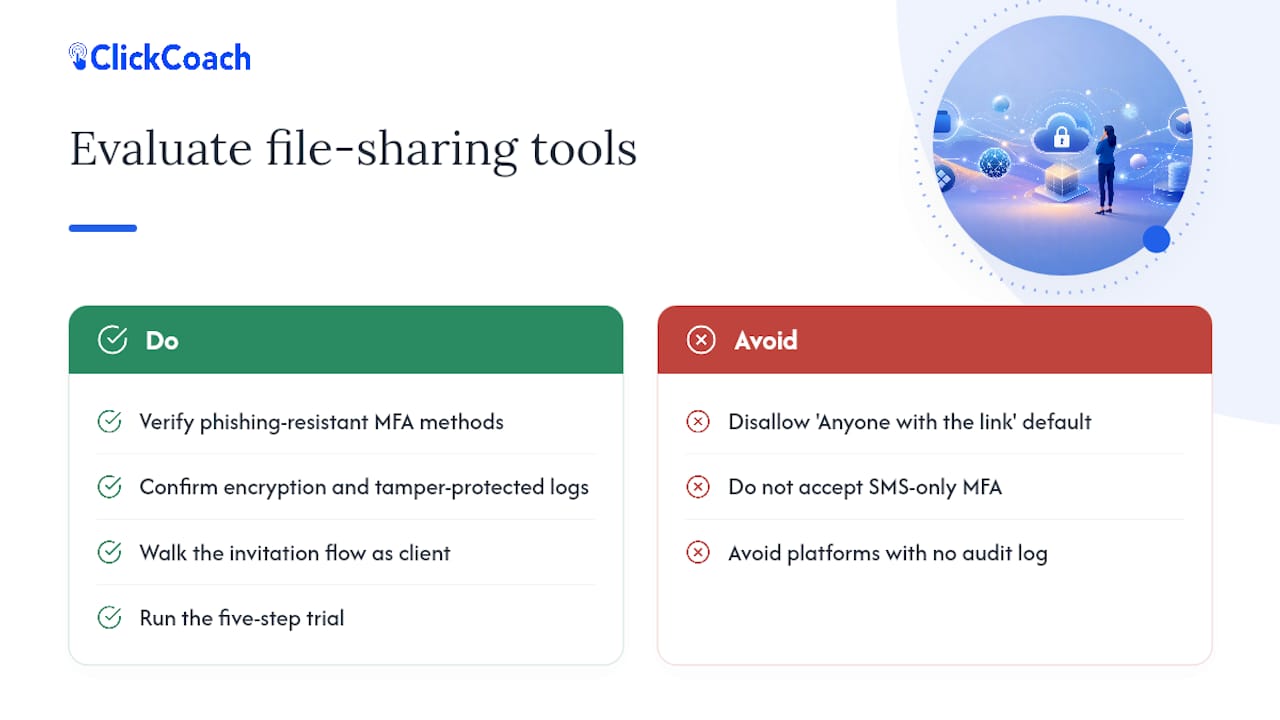
Security checklist. Ask exactly what MFA methods the platform supports, and confirm phishing-resistant options are available, not just promised for a future release. Ask how encryption at rest and in transit works, whether audit logs are exportable, and whether those logs are protected against tampering by admin users.
Usability checklist. Walk through the invitation flow as if you were a client who has never used the platform. Does the first login require a phone call to your support line, or can a 60-year-old client figure it out unaided? Onboarding friction is a security risk in disguise: CISA’s guidance on authentication notes that recipients who find sign-in confusing will forward links or save files somewhere less secure just to get past the friction.
Operational checklist. Confirm you can export your data if you switch platforms later. Check what admin controls exist for offboarding a client in one action rather than five. Ask what happens, procedurally, if a device is lost or an account is compromised.
Stop the evaluation immediately if you see any of these: a default “Anyone with the link” sharing setting, SMS as the only MFA option, or no audit log at all. Those three gaps show up in a disturbing number of consumer-grade tools marketed to small businesses.
Pro Tip: Run a five-step trial before committing: invite a test account, complete the first login yourself, upload a file, download it back, then revoke access and confirm the former recipient is actually locked out. Time each step and write down anywhere you got confused. If you got confused, your least tech-savvy client will get stuck.
How Do You Roll Out Secure File Sharing in a Small Practice?
You do not need a full IT department to deploy this correctly. You need a two-to-four-week pilot, three defined roles, and a one-page policy.
- Pick two or three pilot clients. Choose a mix, one comfortable with technology and one who is not, so you see the full range of friction points.
- Configure defaults before inviting anyone. Named recipients only, view-only permission as the starting point, and expiry set to match the engagement length.
- Run the pilot for two to four weeks. Track every point of confusion, every support question, and every login failure.
- Assign three roles. An admin manages platform settings and user access. A reviewer checks the audit log on a set schedule. An owner, usually you, makes final calls on exceptions and permission changes.
- Write a one-page starter policy. Cover file naming conventions, default expiry length, required MFA type, and how often access gets reviewed. Half a page is enough; the goal is consistency, not paperwork.
- Set your monitoring cadence. A monthly audit log review catches lingering access before it becomes a liability. Log any incident, even a minor one like a client losing their login, so patterns show up over time.
- Train clients in under five minutes. A short video or one-page guide showing exactly how to log in and upload beats a lengthy manual nobody reads. Ask pilot clients directly what confused them, then fix that one thing before rolling out to everyone else.
Once the pilot clears without a support fire drill, expand to your full client roster. The role matrix and policy document you built during the pilot become the reference every new team member or client-facing coach uses going forward.
Why Secure File Sharing Changes How Coaching Actually Works
Coaching runs on trust, and trust breaks the moment a client wonders whether their assessment results or personal disclosures are floating around in an unsecured inbox. A proper client document portal removes that doubt entirely. Clients see one branded, familiar login. They know exactly where their homework, session notes, and progress records live, and they know an old link cannot resurface six months later.
The workflows that benefit most are the ones coaches touch every week: uploading a signed coaching agreement, sharing progress-tracking charts before a renewal conversation, or sending homework between sessions. Handle those through a portal with named access and automatic expiry, and you eliminate the quiet administrative risk of scattered attachments and forgotten shared folders. You also gain something less obvious: a searchable, permission-controlled history of every file a client ever touched, which makes it far easier to demonstrate progress when a renewal conversation comes up.
This is precisely the gap ClickCoach was built to close, centralizing client files, session records, and portal access in one place instead of scattering them across email, a drive folder, and a separate invoicing tool. A secure workflow only holds up if it is easy enough that you and your clients actually use it every time, not just when you remember to.
— Mitch Russo
ClickCoach: One Secure Portal Instead of Five Disconnected Tools
Most coaches piece together file sharing from whatever is already open, a Drive folder here, an email attachment there, a password-protected PDF nobody double-checks. ClickCoach replaces that patchwork with one branded client portal where session notes, homework, progress charts, and file storage all live under the same named-access login your client already uses to check their program.
Because everything from intake documents to billing sits inside one workspace, you are not managing security settings across four separate apps, you are managing them once. That maps directly onto the checklist above: client-specific access, no generic shared links, and a single place to review who has seen what. The broader practice management platform ties that file access to the same client record that holds your session history and action plans, so revoking access at the end of an engagement is one action instead of a scavenger hunt across tools.
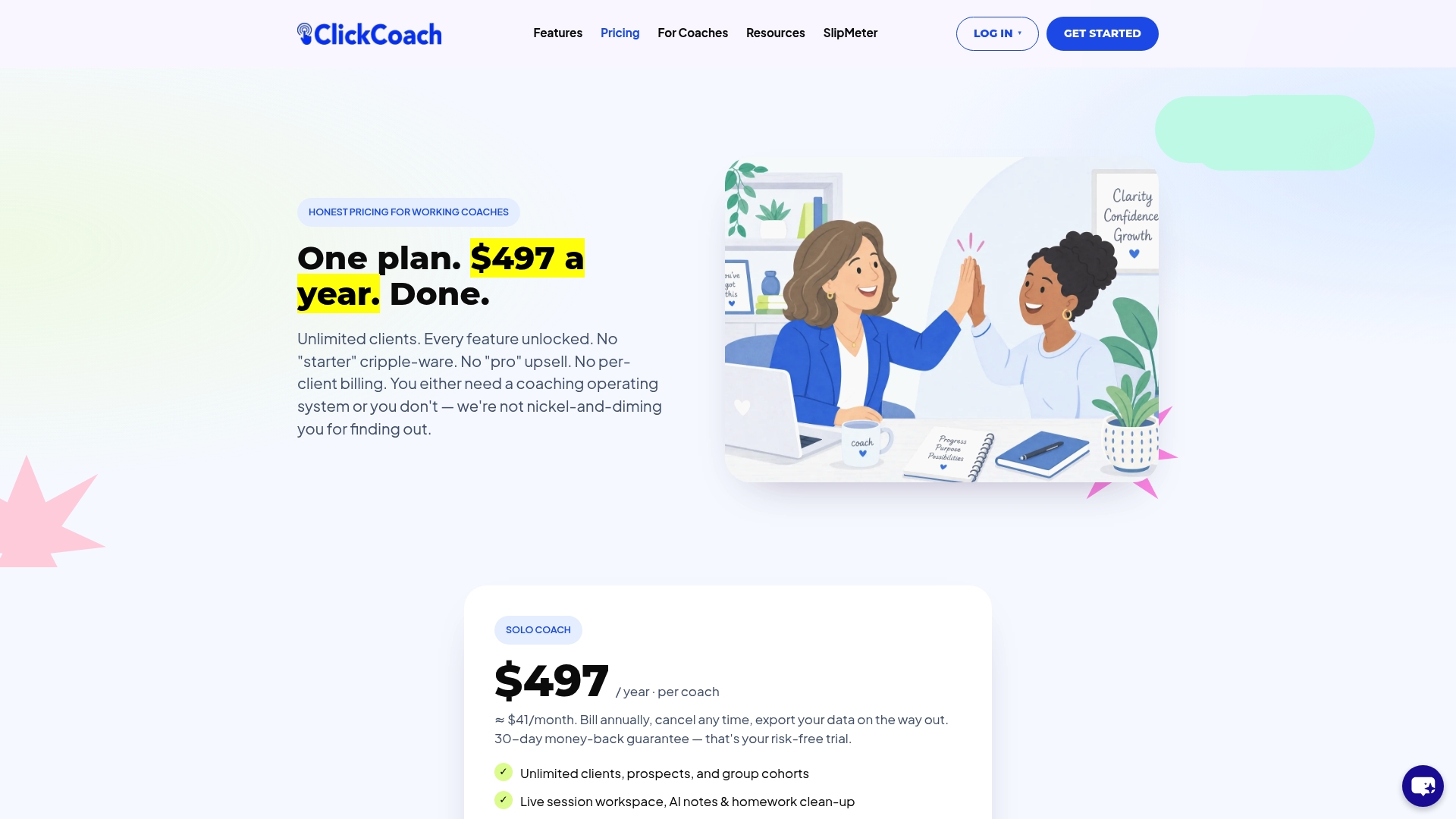
If you want to see whether this fits your practice before committing, run the same two-week pilot outlined earlier: invite two or three clients, watch how the first login and file upload feel from their side, then decide. ClickCoach is priced at $497 per year per coach for solo coaches and multi-coach companies alike, with a 30-day money-back guarantee if it is not the right fit.
Sources
The controls in this guide come from a small set of primary sources worth bookmarking. NIST SP 800-171 lays out the core storage-security controls, encryption, authentication, audit logging, that any file-sharing evaluation should reference. NIST SP 800-209 goes deeper into storage architecture and explains why protecting audit logs matters as much as creating them.
On the authentication side, CISA’s guidance on requiring MFA explains why phishing-resistant methods outperform SMS codes for any account handling sensitive files. The SharePoint and OneDrive configuration baseline from CISA’s SCuBA project gives concrete default settings, named-recipient sharing, view-only defaults, capped link expiry, that translate directly into the policy template covered above. Coaches rolling out a formal client communication plan alongside a new sharing policy may also find value in SEO and positioning guidance for consultants when explaining the change to prospective clients.
- Protecting Controlled Unclassified Information in Nonfederal Systems and Organizations (NIST SP 800-171, r3)
- Require multifactor authentication | CISA
- Security Guidelines for Storage Infrastructure (NIST SP 800-209)
FAQ
How Can I Share Files With Clients Securely?
Use a client-specific portal or a file-sharing service configured for named-recipient access, phishing-resistant MFA, view-only defaults, and automatic expiry. CISA’s configuration baseline recommends capping link lifespans at 30 days or less and restricting sharing to specific people rather than open links.
What Is the Safest Way to Share Confidential Files?
The safest method combines encryption in transit and at rest with phishing-resistant authentication and an audit trail that logs every access event. A dedicated client portal, like the one built into ClickCoach, applies these settings automatically instead of relying on you to configure them correctly every single time.
Is Peer-to-Peer File Sharing Illegal?
Peer-to-peer file sharing is not inherently illegal; it is a technology for transferring files directly between computers without a central server. It becomes illegal when used to distribute copyrighted material without authorization, and it is a poor fit for client files regardless of legality, since it lacks the named-recipient access controls and audit logging that professional file sharing requires.
What Is the Best Secure File-Sharing Site for a Small Practice?
The best option depends on your practice size and technical resources, but a client portal or document-request system generally offers the strongest balance of security and ease of use for coaches and consultants. Look for named-recipient invitations, phishing-resistant MFA support, and exportable audit logs before committing to any platform.
Why Are Password-Protected Links Not Secure Enough?
A password on a link protects against casual discovery, but it does not verify who is actually opening the file. Authentication strength, not the presence of a password, determines real security, which is why a named-recipient sign-in with MFA outperforms a shared password every time.