
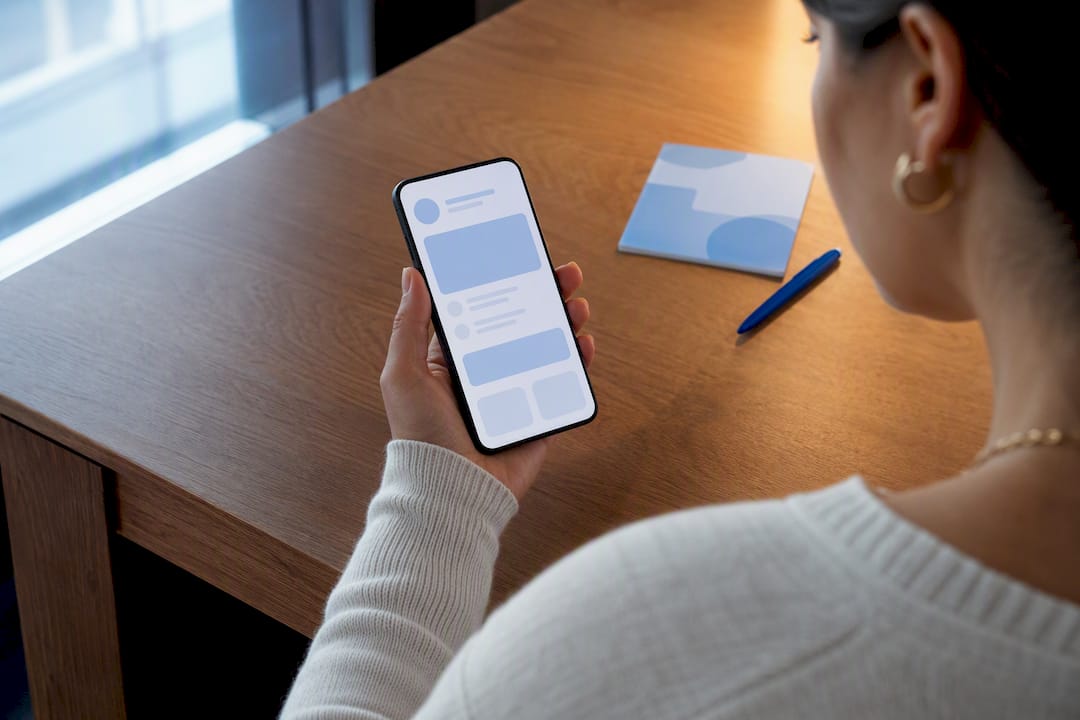
A mobile client portal is a secure app or mobile-optimized web portal that centralizes messaging, scheduling, billing, and document exchange so clients can act from their phones instead of email threads. The value shows up fast: fewer missed appointments, quicker document turnaround, and less time spent chasing paperwork. Security and mobile usability are the two factors that separate a portal clients actually use from one they abandon after the first login.
TL;DR:
- A mobile client portal must facilitate secure messaging, document exchange, scheduling, payments, task guidance, and access controls to ensure high adoption.
- Security standards include encryption (TLS 1.3, AES-256), SOC 2 Type II audits, HIPAA compliance with a signed BAA, multi-factor authentication, and audit logs.
- Mobile web portals are sufficient for basic functions, but features like push notifications, camera capture, and offline actions significantly improve client engagement.
- Integration with existing tools such as calendars, payment processors, and data export options is critical to prevent workflow disruption and ensure easy data management.
- For coaching practices, portals should support session notes, goals, homework, and progress tracking to maintain client accountability and improve outcomes.
Table of Contents
- What Should a Mobile Client Portal Actually Do?
- What Security Standards Should a Client Portal Meet?
- Native App or Mobile Web? What Actually Drives Adoption
- How Do You Choose the Right Mobile Client Portal?
- Why Coaching Practices Need Portal Features Built for Coaching
- How Should Client Onboarding and Access Work?
- What Makes a Mobile Portal’s Design Actually Work?
- Does the Portal Connect to the Tools You Already Use?
- Can You Make the Portal Look Like Your Business, Not the Vendor’s?
- What Support Should You Expect When Something Breaks?
- How Well Does the Portal Work With a Weak Signal?
- Rolling Out a Mobile Portal: What I’ve Learned Works
- How ClickCoach Brings Portal and Practice Management Together
- Sources
- FAQ
What Should a Mobile Client Portal Actually Do?
A portal earns its place in your workflow by handling the tasks clients repeat every week, not by offering a long feature list nobody opens. The strongest portals treat every interaction as an action to complete, not a page to browse. That distinction comes from how branded mobile portals drive task completion rather than passive file storage.
Here’s what a reliable portal needs at minimum:
- Secure messaging tied to individual client records, so conversations stay attached to the right file instead of scattered across email and text.
- Document capture and exchange, including camera-to-PDF scanning, in-app previews, e-signature, and simple upload/download without a separate app.
- Appointment scheduling with reminders, calendar sync, and self-service rescheduling that doesn’t require a phone call.
- Payments and invoicing shown in context, next to the session or service the charge relates to.
- Task lists and guided next steps that tell clients exactly what to do between interactions, whether that’s signing a form or completing an assignment.
- Access controls and admin tools that let you manage who sees what, especially across multiple client accounts or team members.
Portals originally grew out of a simple problem: private file exchange over email is neither secure nor organized. A mobile client portal solves that by giving every client one place to check, act, and move on. When a portal skips any of the six functions above, clients quietly fall back on email, and adoption never really happens.
What Security Standards Should a Client Portal Meet?
Security is where portal shopping gets serious, especially if you handle health information, financial details, or anything a client would consider private. The baseline isn’t negotiable, and vendors who dodge specifics on these points are telling you something.
- Encryption in transit and at rest. Look for TLS 1.3 protecting data as it moves and AES-256 encrypting it once stored. Anything older is a downgrade you shouldn’t accept.
- Independent audits. SOC 2 Type II matters more than a vendor’s self-description because it certifies that controls held up over a monitoring period, not just on the day of a demo.
- HIPAA and a signed Business Associate Agreement (BAA) if any client information qualifies as protected health information, even indirectly.
- Mandatory multi-factor authentication (MFA), with single sign-on (SSO) available for teams that need centralized identity management.
- Audit logging. An immutable audit trail lets you see who accessed what and when, which matters both for security reviews and for resolving client disputes.
Pro Tip: Ask every vendor for their SOC 2 report directly, not a summary page. A vendor that can produce the report in an email within a day is usually the one whose security posture matches the marketing copy.
Data retention policies deserve equal scrutiny. Confirm how long records persist after a client leaves and whether you can export everything if you switch platforms later.
Native App or Mobile Web? What Actually Drives Adoption
The app-versus-browser debate matters less than most vendors suggest, but the features underneath it matter enormously. A responsive mobile web portal works fine for basic document viewing and simple messaging. It falls short the moment you need push notifications, biometric unlock, or a home-screen icon that keeps the portal top of mind.
The features that separate a portal people actually open from one they forget include:
- Push notifications for appointment reminders, new messages, and document requests.
- Camera-to-PDF capture, letting a client photograph a form instead of hunting for a scanner.
- One-tap approvals for e-signatures and payment confirmations.
- Offline actions that queue and sync once a connection returns, useful for clients with inconsistent mobile service.
Test any portal by timing a real task, like scheduling a session or uploading a form, on a phone using a 4G connection. If it takes more than two minutes, clients will abandon it. Converting an existing web portal into a wrapped mobile app is a reasonable middle step when a full native rebuild isn’t realistic yet, since it still unlocks push notifications and home-screen access.
How Do You Choose the Right Mobile Client Portal?
Choosing a portal comes down to matching features against your actual workflow, not the vendor’s feature list. Start with a checklist organized by category, then score each candidate against it.
- Security: TLS 1.3, AES-256, MFA, audit logs, and a signed BAA if you handle PHI.
- Mobile experience: push notifications, camera capture, and a task flow that completes in under two minutes.
- Integrations: calendar sync, payment processing, and export options that don’t lock your data in.
- Billing: invoicing tied to client records, not a separate finance tool you have to reconcile manually.
- Admin controls: the ability to manage access across a team without an engineer’s help.
- Onboarding: how fast a new client can get from invite to first completed action.
Ask vendors these questions directly: Will you sign a BAA? What’s your data export process if we leave? What’s your uptime SLA, and how do you back up client data? Vague answers here are the clearest deal-breaker signal you’ll get before signing anything.
Pro Tip: Run a pilot with 10 to 20 clients over two to four weeks before committing to a full rollout. Portals built for action rather than browsing tend to show a clear adoption signal within that window, which tells you far more than a sales demo ever will.
Score deal-breakers separately from nice-to-haves. A missing e-signature feature is an inconvenience. Missing MFA is disqualifying.
Why Coaching Practices Need Portal Features Built for Coaching
Generic client portals handle files and messages well, but coaching runs on a different rhythm: session notes, goals, action plans, homework between sessions, and recurring assessments that track progress over time. A portal that treats homework as just another PDF misses the point entirely.
The features that move the needle for coaches are the ones that connect directly to outcomes. Homework tied to a specific goal, progress tracked against a baseline, and action items visible to both coach and client between sessions all reinforce accountability in a way a plain document folder can’t. This is the gap ClickCoach’s client portal is built to close for coaches who need more than file storage.
If you’re currently piecing together a scheduling app, a separate notes document, and email for homework, a coaching-specific portal consolidates that into one client-facing view, which is worth evaluating against your current setup.
How Should Client Onboarding and Access Work?
Onboarding decides whether a client uses your portal for the next year or forgets it exists after week one. The friction point is almost always the first login, so design around removing every unnecessary step between invite and first completed action.
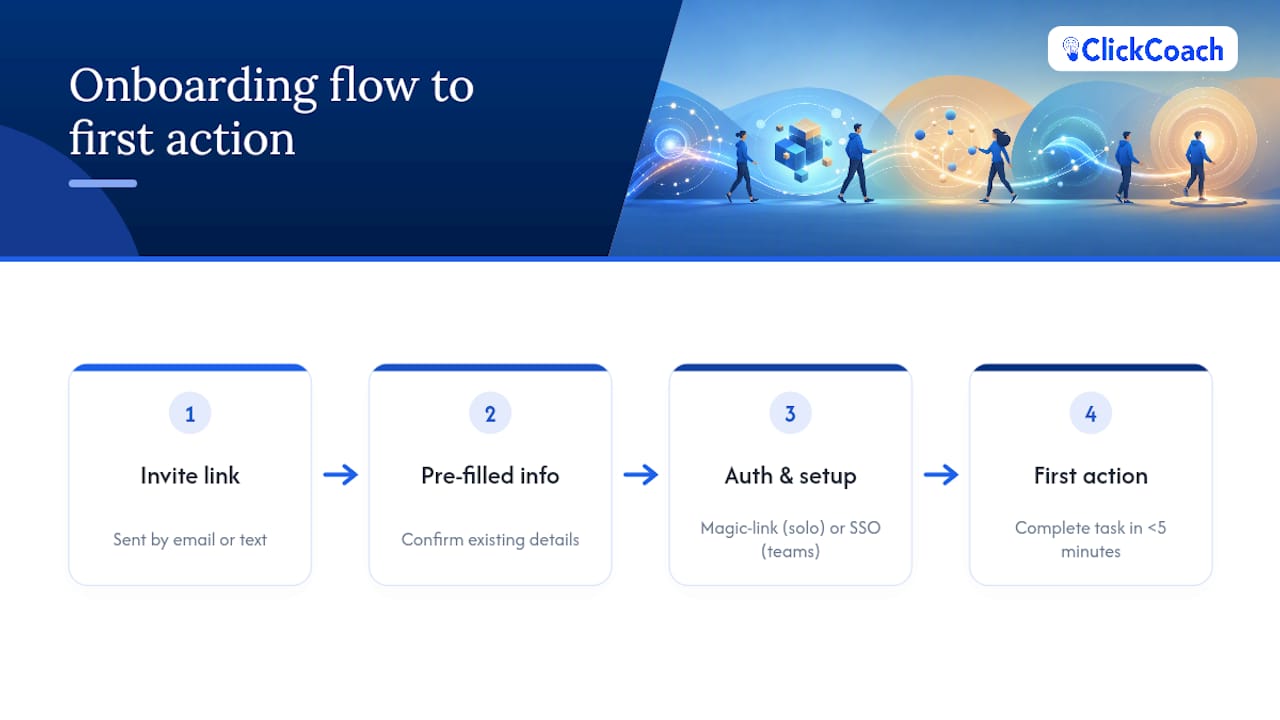
A clean onboarding flow starts with a single invite link sent by email or text, not a manual account-creation process the client has to complete unassisted. That link should pre-fill whatever information you already have, so the client only confirms details rather than re-entering them.
Single sign-on matters more for teams and multi-coach practices than for solo providers, since it lets you manage access centrally instead of resetting forgotten passwords one client at a time. For a solo practice, a simple magic-link login (no password to remember) often beats a full SSO setup in practice, since it removes a barrier without adding infrastructure.
Account setup should ask for the minimum information needed to start, with anything optional deferred until after the client’s first session or first completed task. The fastest onboarding flows get a client from invite to a completed action, like confirming an appointment or reading a welcome message, in under five minutes. Anything longer and you’ll see drop-off before the relationship even starts.
What Makes a Mobile Portal’s Design Actually Work?
Mobile design for a client portal isn’t about miniaturizing a desktop layout. It’s about deciding what one task the client needs to complete right now, and removing everything else from the screen until that’s done.
The strongest mobile portals follow a few consistent principles. Every screen leads with one primary action, whether that’s “confirm this appointment” or “upload this document,” rather than presenting five options at once. Buttons and tap targets stay large enough for one-handed use, since most portal interactions happen while a client is walking, waiting, or multitasking. Navigation stays shallow, ideally two taps or fewer from the home screen to any core task.
Text input gets minimized wherever possible in favor of taps, toggles, and camera capture. Asking a client to type a long message on a phone keyboard is a reliable way to lose them; asking them to tap “approve” or snap a photo isn’t. Load times matter more on mobile than desktop, since a portal that takes five seconds to open on a spotty connection loses trust before it loses the task.
The measurement that matters isn’t login frequency. It’s whether clients complete the specific tasks the portal was built for, which is the real signal of a portal designed around action instead of browsing.
Does the Portal Connect to the Tools You Already Use?
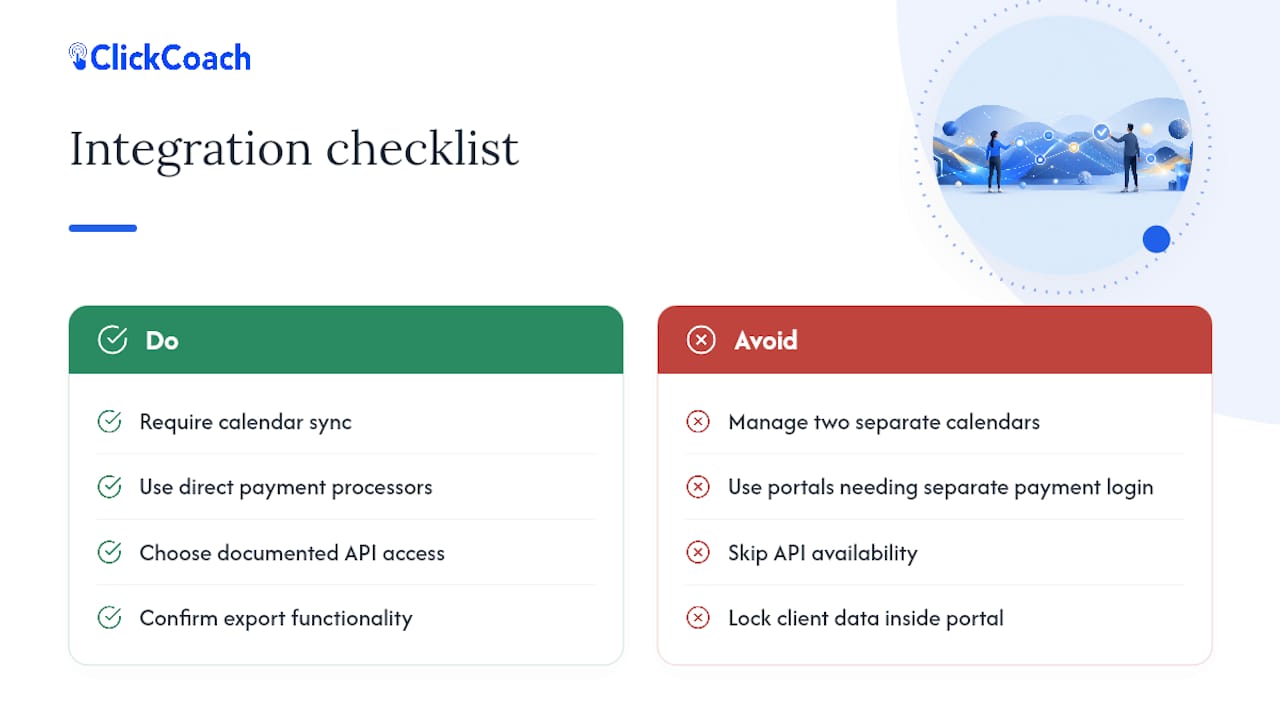
Integration capability determines whether a portal becomes your system of record or just another disconnected app competing with the tools you already trust. Calendar sync is the most immediate test: if appointments booked in the portal don’t appear automatically in your existing calendar, you’ll end up managing two schedules instead of one.
Payment processing integration matters just as much. A portal that handles invoicing but requires a separate login to actually collect payment adds a step rather than removing one. Look for direct connections to established payment processors rather than a proprietary system that locks your transaction history inside the portal alone.
API access is the detail most buyers overlook until they need it. A portal with a documented API lets you eventually connect it to other business software, whether that’s accounting tools, marketing automation, or a CRM. Even if you don’t need that connection today, its absence limits you later. Some providers pair portal adoption with broader workflow automation, and resources like this marketing automation checklist for small businesses are worth reviewing if you’re building out onboarding sequences or follow-up automation alongside your portal rollout.
Export functionality is the integration question nobody asks until they’re switching platforms. Confirm before you commit, not after, that you can pull your client data out in a usable format.
Can You Make the Portal Look Like Your Business, Not the Vendor’s?
Branding customization affects trust more than most buyers expect. A client who logs into a portal covered in someone else’s logo, in a color scheme that doesn’t match your website or your invoices, questions whether they’re in the right place. That hesitation, even for a second, chips away at the professional impression you’ve built everywhere else.
The customization that matters most is straightforward: your logo, your color palette, and a login screen that looks like an extension of your business rather than a third-party tool you’ve bolted on. Custom domains, where the portal lives at a subdomain of your own website rather than the vendor’s, push that impression further.
Beyond visual branding, look at how much control you have over the client-facing language itself. Can you rename “sessions” to match your terminology? Can you customize the welcome message a new client sees on first login? These details seem minor individually, but together they decide whether the portal feels like your practice or like borrowed software with your logo pasted on top.
What Support Should You Expect When Something Breaks?
Support quality only reveals itself after something goes wrong, which is exactly when you have the least patience to discover a vendor’s support is slow or unhelpful. Evaluate this before you sign, not after your first client complains about a broken upload.
Check what support channels are actually available: live chat, email, or phone, and during what hours. A portal used by clients across time zones needs support that doesn’t disappear outside a single business day. Documentation matters just as much as direct support. A searchable knowledge base with screenshots for common issues, like a client who can’t log in or a document that won’t upload, resolves half your support needs before you ever need to open a ticket.
Ask vendors directly what their average response time looks like for a login issue versus a billing dispute, since these carry very different urgency. A response promise with no specifics attached is a soft answer, and soft answers on support tend to predict slow answers when you actually need help.
How Well Does the Portal Work With a Weak Signal?
Performance under real-world conditions, not perfect office WiFi, is where a lot of otherwise good portals fall apart. Clients use these tools from parking lots, waiting rooms, and moving vehicles, and a portal that only works well on strong WiFi will frustrate exactly the people it’s meant to help.
Offline functionality is the feature that separates portals built for mobile reality from portals that merely fit on a mobile screen. A client should be able to view a previously loaded document, draft a message, or mark a task complete even with no signal, with the action queuing and syncing automatically once connectivity returns. Without this, a dropped connection mid-task means starting over.
Load time is the other practical test. A portal that takes more than a few seconds to open on a typical 4G connection is asking clients to wait through friction that a well-optimized app avoids entirely. Test any candidate portal on a phone with mobile data only, not WiFi, before deciding it performs well enough for daily use.
Rolling Out a Mobile Portal: What I’ve Learned Works
Start small. A pilot of 10 to 20 clients across two workflows, like messaging and scheduling, gives you a real read on adoption before you commit your whole client base. Measure activation (did they log in and complete a task) rather than just signups.
Send a short client email explaining what’s changing and why, plus a one-page walkthrough. Track task completion weekly for the first month. That’s your earliest, clearest signal of whether the rollout is working.
— Mitch Russo
How ClickCoach Brings Portal and Practice Management Together
ClickCoach is the practical next step for coaches who’ve read this far and realized a generic file-sharing portal won’t cover session notes, goals, homework, and recurring assessments in one place. Instead of stitching together a scheduling app, a notes document, and a separate portal, ClickCoach keeps client records, session notes, action plans, homework, progress tracking, billing, and a branded client portal in a single workspace.
For a coach running a solo practice or a multi-coach team, that consolidation means less time spent switching between tools and more consistent follow-through between sessions. AI helps draft homework and follow-up actions while the coach remains in control.
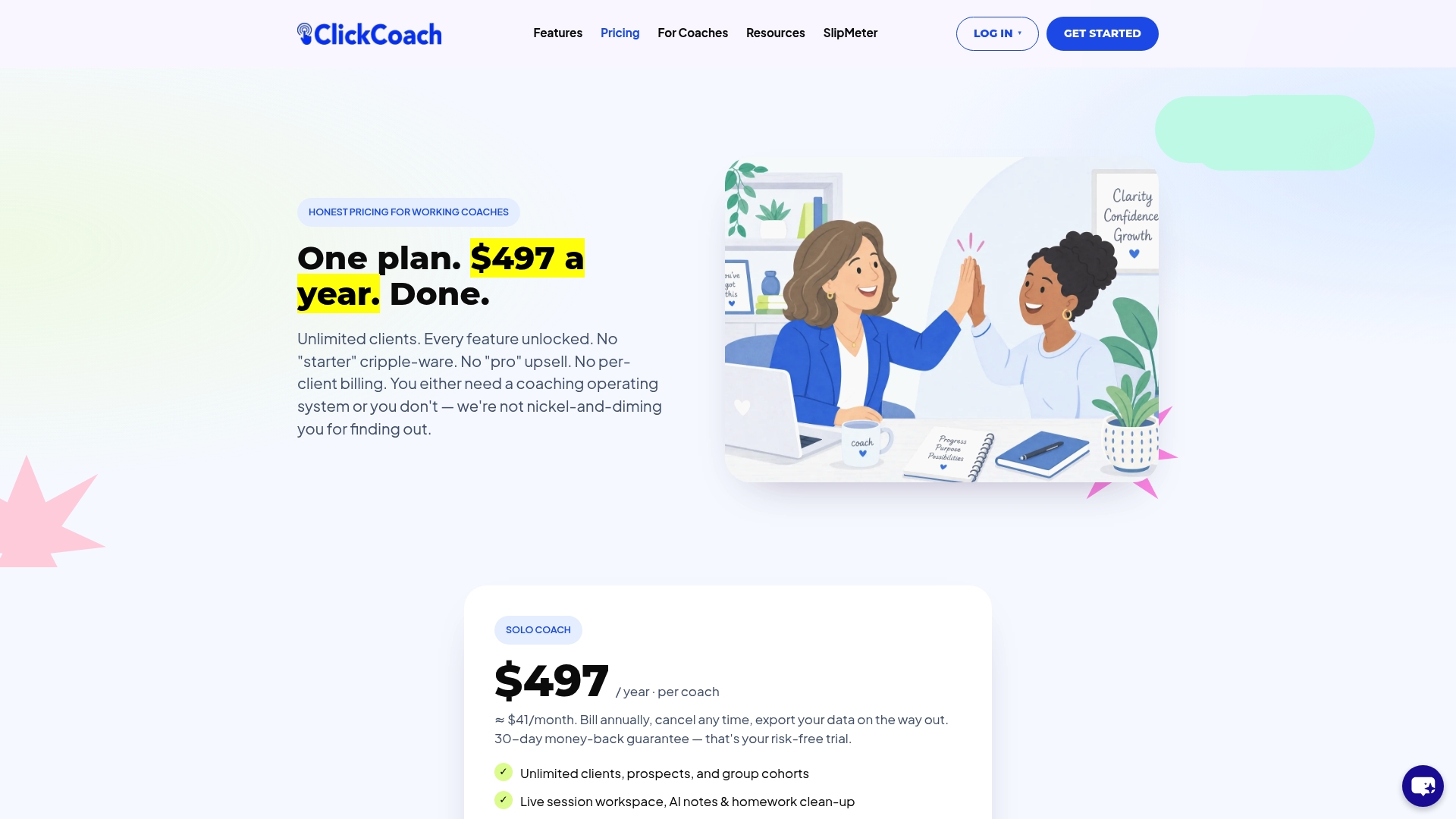
If you’re evaluating whether an integrated coaching platform fits your practice better than a standalone portal, start with the coaching client portal features or check current pricing for coaching software to see what full platform access includes.
Sources
Security guidance drew on AppDeck’s portal security guide and Moxo’s mobile portal research. For coaching-specific features, see ClickCoach’s platform overview.
- Client portal — Wikipedia
- Branded client portal mobile app: Launch an app that wows & drives action on the go | Moxo
- Secure Client Portal: Complete Security Guide (2026) | AppDeck
- Why SaaS companies are turning client portals into mobile apps in 2026 | Webvify
FAQ
What Is a Mobile Client Portal?
A mobile client portal is a secure app or mobile-optimized web interface that centralizes messaging, scheduling, document exchange, and billing so clients can complete tasks directly from their phones.
Is a Native App Better Than Mobile Web for a Client Portal?
Not always. A responsive mobile web portal handles basic tasks fine, but a native app adds push notifications and biometric login, which meaningfully increase engagement and retention.
What Security Certifications Should a Client Portal Have?
Look for SOC 2 Type II, AES-256 encryption at rest, TLS 1.3 in transit, and mandatory multi-factor authentication, plus a signed BAA if the portal handles protected health information.
How Long Should a Portal Pilot Run Before Full Rollout?
A pilot of 10 to 20 clients over two to four weeks focused on two workflows is enough to reveal whether adoption and task completion are strong enough to expand.
Does ClickCoach Include a Mobile Client Portal?
Yes. ClickCoach’s client portal is built specifically for coaching workflows, connecting session notes, homework, and progress tracking to the client-facing experience rather than offering generic file storage.