

To migrate coaching data safely, treat the move as a short project with five parts: decide what moves, export and check it, clean and map it, test it before any client sees it, and keep your old system intact until the new one has proven itself. Do that, and you can switch tools in a couple of weeks without losing a session note, a goal or an invoice.
This guide is written for working coaches, not IT departments. It gives you a checklist you can copy, the tests worth running, and a rollback plan for the day something does not match.
TL;DR
- Move what you need to run active clients and prove their progress: contacts, goals, action plans, recent session notes, agreements and billing. Archive the rest in a read-only export.
- Verify the export before you trust it: record counts, private and archived items, dates, currencies and real attachment files.
- Clean and map fields on paper first. Duplicates, inconsistent formats and unmapped fields cause most of the pain.
- Test with a few real clients’ data and the right permissions before you invite anyone. Switch in waves, not all at once.
- Keep your old tool and a full backup untouched until a set number of weeks have passed without a problem.
Table of Contents
- What data should you migrate, and what can stay in an archive?
- Back up first, and keep it separate
- How do you check that an export is complete and usable?
- Clean and map your records before you import
- Protect client information during the transfer
- What tests should pass before you invite clients?
- How do you switch an active practice with minimal disruption?
- What does a practical rollback plan look like?
- Our perspective: migration is the best time to simplify
- Moving to one workspace
- A final pre-launch checklist
- FAQ
- Sources
What data should you migrate, and what can stay in an archive?
The common mistake is trying to move everything. A coaching practice accumulates years of notes, emails, files and invoices, and not all of it earns a place in the new system.
Sort your records into three groups.
Move: needed to run the practice this quarter.
- Client and prospect contact details, with tags or stages
- Active goals, action plans and current homework
- Session history for active clients (at least the recent notes and any that show a baseline)
- Assessment results you will compare against later
- Signed agreements and their renewal dates
- Active subscriptions, packages and open invoices
- Templates you actually reuse: intake forms, homework, session structures
Archive: needed for reference, not for daily work.
- Notes and files for past clients
- Closed invoices and payment history
- Old email threads and call recordings
- Retired programs and outdated templates
Delete or ignore: duplicates, test records, abandoned leads.
Your archive should be a complete export stored somewhere secure, in a format you can open without the old tool. If a former client asks for their records or a dispute arises, you can answer from the archive without paying for two platforms.
A quick way to decide
Ask of each record type: “Will I open this in the next 90 days to coach, bill or show progress?” If yes, migrate it. If it only matters for the record, archive it. Write the decision in a simple inventory table before you touch any export.
| Record type | Where it lives now | Migrate, archive or delete | Owner |
|---|---|---|---|
| Active client contacts | Migrate | You | |
| Session notes, active clients | Migrate | You | |
| Session notes, past clients | Archive | You | |
| Signed agreements | Migrate (active), archive (past) | You | |
| Invoices and subscriptions | Migrate open items, archive closed | You or bookkeeper | |
| Assessments and scores | Migrate | You | |
| Files and attachments | Migrate current, archive the rest | You |
Back up first, and keep it separate
Before you change anything, take a full backup of everything in the old system. This is your rollback point. Store one copy somewhere outside the old tool and outside the new one, such as an encrypted drive or a secured cloud folder you control.
Client files hold sensitive information about people’s work, finances and personal lives, so treat the backup with the same care as the live system. Use a strong password or encryption, limit who can open it, and do not leave export files sitting in your downloads folder or in email attachments.
Label the backup with the date and the tool it came from. You will want to know later exactly which version of the truth it holds.
How do you check that an export is complete and usable?
An export file that downloads is not the same as an export that works. Before you build anything on it, check it against the original.
The verification points that matter most are these: private and archived records are present, totals match, timestamps and currencies are accurate, and attachments are actual files rather than temporary links, according to this guide to switching SaaS tools. Turn that into a checklist for a coaching practice.
- Count records. Compare the number of clients, sessions, notes, invoices and files in the old system with the export. Write both numbers down.
- Check the hidden ones. Look for archived clients, private notes and inactive prospects. Many tools leave these out of default exports.
- Spot-check five clients. Pick a long-term client, a new one, one with many attachments, one with a payment issue and one archived. Compare their full record line by line.
- Check dates and time zones. A session logged at 11 p.m. should not appear on the next day. Confirm the date format is consistent.
- Check money. Totals of paid invoices should match by month. Confirm the currency on each line, especially if you have international clients.
- Open the attachments. Click ten files in the export. If you find links that point back to the old tool, download the actual files now, because those links can stop working when you cancel.
- Look for lost structure. Exports often flatten things. Check whether goals are still linked to action plans, and whether notes are still tied to the correct session.
One point from the same guide is worth remembering: a legal right to export your data gives you access to it, but does not guarantee you will get a full copy of the old system’s logic, permissions or reports in the new one. Plan to rebuild your dashboards and automations, not expect them to arrive.
Clean and map your records before you import
Importing messy data into a clean system gives you a messy system. Spend a few hours on cleanup while the old tool is still the source of truth.
Standard data-cleaning practice before a move includes deduplicating records, standardizing formats and verifying email and phone accuracy. For a coaching practice, that looks like this:
- Merge duplicates. The same client entered twice as “Jon” and “Jonathan” will split their history in two.
- Standardize names and formats. Pick one format for phone numbers, dates and company names.
- Fix emails. A mistyped address means a client never receives their portal invitation.
- Normalize labels. If you have “Exec,” “Executive” and “executive coaching” as client types, choose one.
- Remove dead weight. Delete test records and leads that went cold years ago, or move them to the archive.
Build a field map
Field mapping means documenting how each piece of source data translates to a field in the destination, including how you handle missing values and how you consolidate multiple picklist options into fewer ones, as the same guide explains. A simple spreadsheet is enough.
| Old field | New field | Rule | Notes |
|---|---|---|---|
| Full name | First name, Last name | Split on first space | Check double-barrelled names by hand |
| Program type | Program | Merge “Exec” and “Executive” | |
| Session notes (text) | Session notes | Copy as is | Keep original date |
| Goal status | Goal status | Map “In progress” and “Active” to one value | |
| Package balance | Package or subscription | Enter manually for active clients | Too few to automate |
For any field with no home in the new system, decide in advance: store it in a notes field, attach it as a file, or leave it in the archive. Never let an import silently drop it.
Session notes deserve special attention, because they are the heart of your client history. If you want structured notes going forward, see how coaching notes software organizes them. For history, keep the original wording and dates. Do not reformat old notes to match a new template.
Protect client information during the transfer
Coaching records are confidential. A migration creates several moments where that confidentiality can slip: export files on your laptop, files sent to a helper, and test accounts with real data.
Some practical rules:
- Do the work on a device you control, with a screen lock and disk encryption.
- Do not email exports, even to yourself. Use a secure transfer or a shared folder with access limits.
- If an assistant or bookkeeper helps, give them only the data they need and remove their access afterward.
- Confirm in writing how the new vendor stores and protects data, and who can see it.
- Delete working copies of export files when the migration is accepted. Keep only the dated archive.
- Check your coaching agreements and privacy policy. If they describe where client data is stored, update them for the new system.
If you have clients in the EU or California, rules such as GDPR and the CCPA give individuals a right to data portability, which is summarized by New America. Ask a privacy attorney about your specific obligations before you change how you hold their data.
What tests should pass before you invite clients?
Do not invite a single client until you have tested the new system with real, migrated data. Large software projects treat this as a go-live gate: Microsoft’s implementation guidance says testing should cover in-scope requirements and edge cases, user acceptance testing with migrated data and correct security roles, and performance testing for peak loads and search. You do not need a QA team, but the logic scales down to one person.
Run this acceptance test with three to five migrated clients:
- Find them. Search by name, email and program. Do they come up quickly?
- Read the history. Open their session notes in date order. Are any missing or out of sequence?
- Check goals and homework. Are active goals, action plans and open assignments present and linked to the right client?
- Check billing. Does each client’s plan, next charge date and balance match your records?
- Test permissions. Log in as a client, or use a preview, and confirm they see only their own information. If you have other coaches, confirm each sees only the clients they should.
- Test the client experience. Walk through the invitation, login, and a completed homework item the way a client would. A coaching client portal should feel simple on a phone, not only on your desktop.
- Test edge cases. Include a client with special characters in their name, one with a long note history, and one with a paused subscription.
- Send yourself the emails. Check that invitations, reminders and receipts carry your branding and the right sender address.
Write down each failure and fix it before moving on. If the same failure appears in two clients, fix the mapping and re-import, rather than patching records by hand.
How do you switch an active practice with minimal disruption?
A coaching practice never pauses, so avoid a single cut-over day. Move in waves.

Week 1: preparation. Back up, inventory, clean and map. Tell no clients yet.
Week 2: pilot. Import and test with a few clients. Choose ones who are patient and comfortable with technology. Run at least one real session in the new system.
Week 3: main wave. Import the remaining active clients. Send one clear message: what is changing, what they need to do (usually accept an invitation and log in), and who to contact if something fails. Keep it to a few short paragraphs and one button.
Week 4: wrap-up. Move leftover prospects, close the open items in the old system and run your final record counts.
A few habits make the switch smoother:
- Avoid switching during your busiest week, a contract renewal window or a group program kickoff.
- Freeze changes in the old system after the final export. If you must add a note during the move, record it in one place and enter it afterward.
- Re-run your record counts after import and compare to the original numbers you wrote down.
- Keep billing continuous. Do not cancel subscriptions in the old system until the new one has processed at least one real charge. Be careful not to double-bill anyone.
- Ask pilot clients what felt confusing, and fix it before the main wave.
If you coach groups or teams, pilot with one cohort first, and confirm that participation records and shared materials moved correctly.
What does a practical rollback plan look like?
Rollback sounds dramatic, but for a small practice it is a short list. The aim is that if the new system fails an important test, you can keep coaching from the old one without panic.
- Keep the old system active. Do not cancel it until the new one has run cleanly for a period you decide in advance, such as a full billing cycle.
- Keep the dated backup untouched. Work only from copies.
- Define triggers. Write down what would make you pause: missing session history for active clients, wrong billing amounts, a client seeing another client’s data. Any one of these means stop.
- Log changes made in the new system. If you roll back, you need to know which notes or invoices were created after the move.
- Decide who you will tell. Prepare a short holding message for clients in case the switch is delayed.
The point of defining the triggers in advance is to avoid making that judgment while stressed.
Our perspective: migration is the best time to simplify
We built ClickCoach after seeing how many coaches run their practice across a calendar, a document folder, a billing tool, a spreadsheet for goals and an email platform. Each tool holds a piece of the client story, and none of them show the whole thing.
That is why we think a migration is less about moving files and more about deciding what your operating workflow should be. Before you import anything, ask what you need to see for each client: where they started, what they committed to, what they did between sessions, and what changed. Those four things are the backbone of renewal conversations, and your data should be organized to answer them.
Our advice is to migrate less and structure it better. A clean set of active clients, with goals, action plans and a baseline assessment, is more useful than ten years of unsorted notes. Keep the old material in a secure archive and bring over only what supports the next conversation.
Finally, test the client side as hard as your own. A portal clients do not use, however complete the data, does nothing for accountability.
— Mitch Russo
Moving to one workspace
If your records are currently spread across several apps, ClickCoach brings client records, session notes, goals, action plans, homework, progress tracking, billing and branded client portals into one workspace. You can read how the pieces fit together on our coaching business management software page, or see how accountability between sessions works.
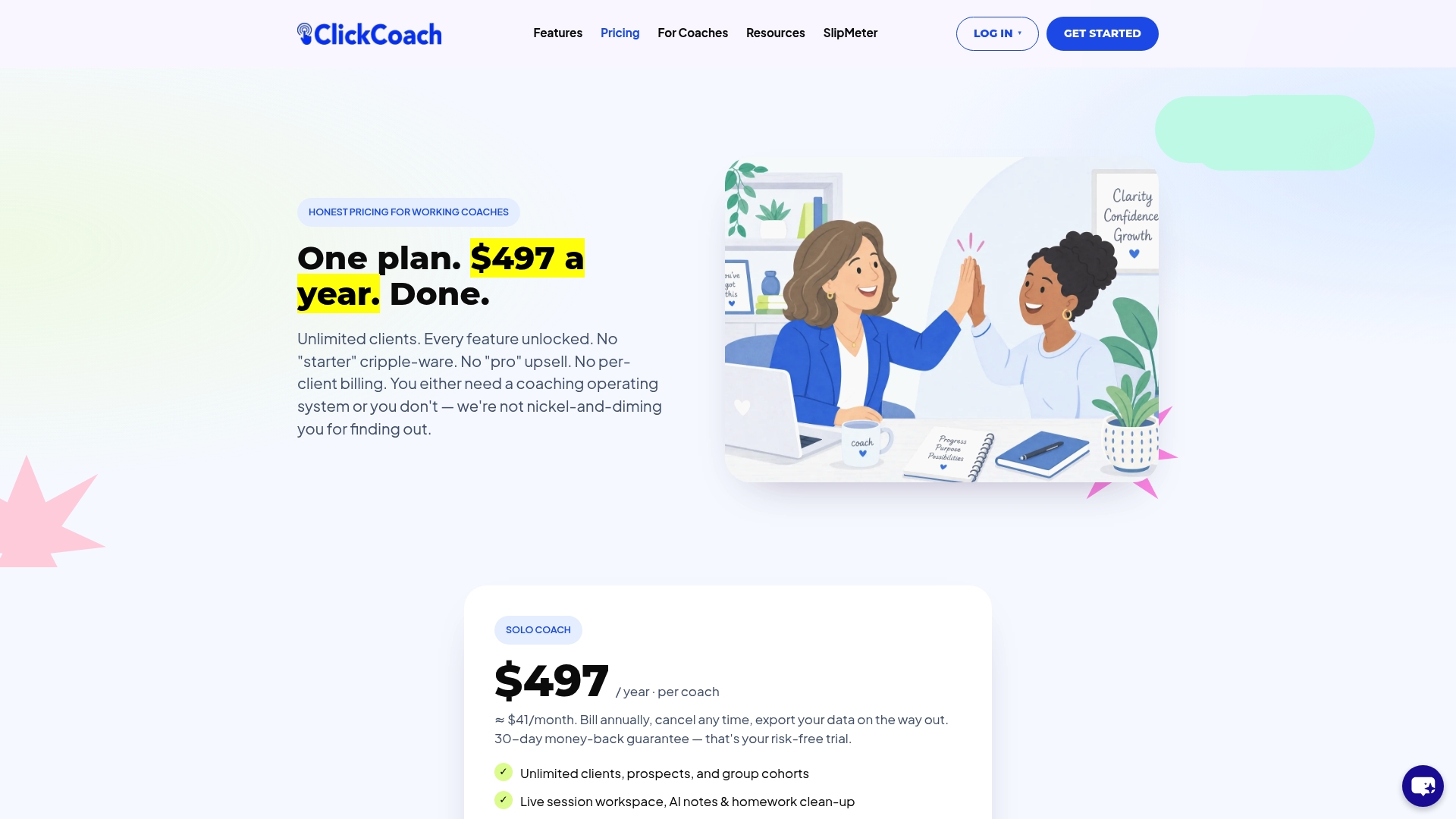
Pricing is one published plan: $497 per year per coach, paid annually, with a 30-day money-back guarantee. You can see the details on the pricing page. ClickCoach is practice management software, not a coaching directory, a certification provider or an email tool, so it fits best if your goal is to run sessions and show client progress in one place.
A final pre-launch checklist
Print this and tick each line before you tell clients the new system is live.
- [ ] Full backup of the old system, dated and stored securely
- [ ] Inventory of what moves, what is archived, what is deleted
- [ ] Record counts recorded for clients, sessions, notes, invoices and files
- [ ] Duplicates merged, formats standardized, emails checked
- [ ] Field map completed, with a decision for every unmapped field
- [ ] Attachments downloaded as real files
- [ ] Acceptance test passed with three to five clients
- [ ] Permissions and client-view tested
- [ ] Billing tested with one real charge, no double billing
- [ ] Rollback triggers written down
- [ ] Client announcement drafted
- [ ] Working export copies deleted after acceptance
FAQ
How long does it take to migrate coaching data?
For a solo coach with a few dozen clients, the preparation, cleanup and testing usually fit into two to four weeks of part-time effort. The time depends mostly on how messy your records are and how many tools you are combining. Plan more time if you have multiple coaches, group programs or years of attachments.
Do I need to move all my old session notes?
No. Move notes for active clients so you can see their full journey, and archive the rest in a secure export. If a former client returns, you can retrieve their history from the archive and add what you need.
Can I migrate if my old tool has no export button?
Often yes, but it takes more manual work. Ask the vendor for a data export, check whether the tool offers reports you can download, and save notes and files in bulk where you can. For small practices, entering a handful of active clients by hand can be more reliable than a messy automated import.
When should I cancel the old system?
Only after the new system has passed your acceptance tests, processed at least one real billing cycle and run long enough that you trust it. Before cancelling, confirm you have a complete archive, with real attachment files rather than links that die when your account closes.